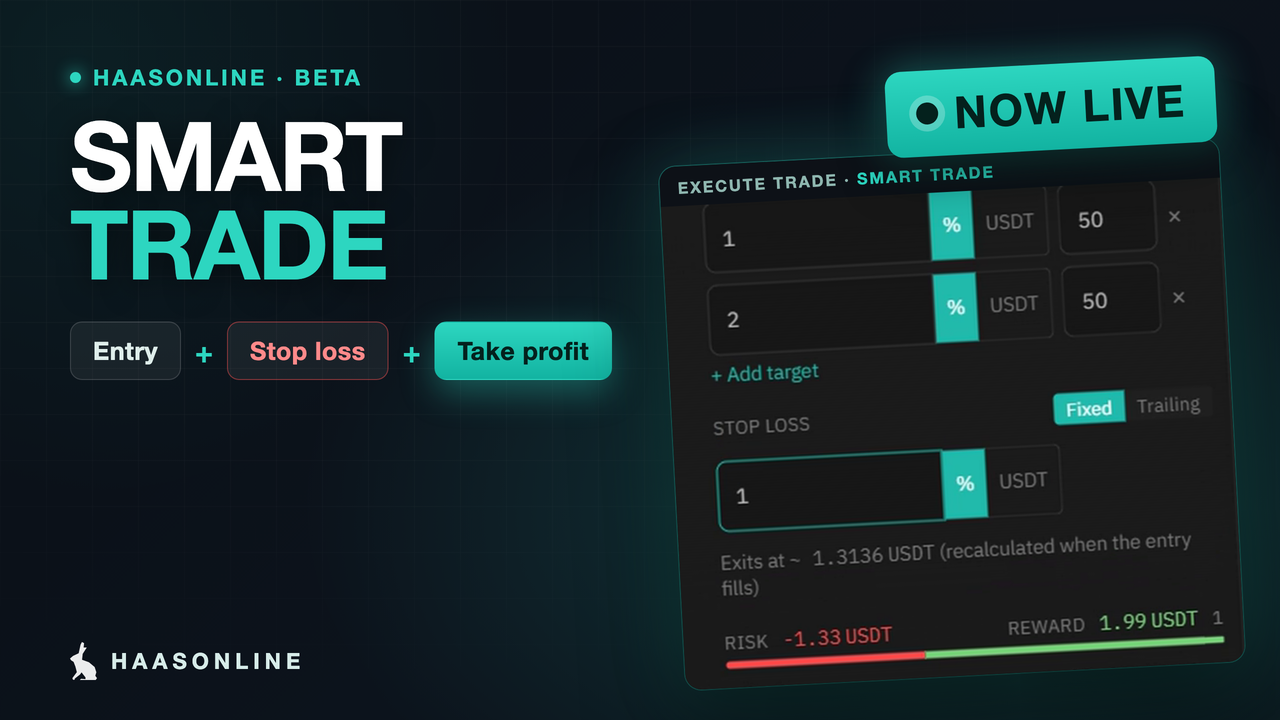
Smart Trade is live on HaasOnline TradeServer Cloud, in Beta. Place a manual trade with its take profit and stop loss attached, and HaasOnline watches the price and closes the trade when a level is reached. No bot, no HaasScript. The full guide is in the help docs.
Bots are the heart of HaasOnline, but plenty of trades start with a person, not a strategy: you see a level, you take the trade. Until now, the exit for a trade like that was up to you to remember. Smart Trade puts the plan in the order itself. You set the entry, where you take profit and where you get out if you are wrong, before the trade is placed, and the plan stays in place while you are away from the screen.
Placing a Smart Trade
Open the Execute trade panel (the $ icon at the top right of the app), choose your account, market, direction and amount as usual, and switch on Smart Trade. Then:
- Take profit, in one target or in stages. Each target has its own price and its own share of the position, so you can bank half at the first target and let the rest run to the second
- Stop loss, fixed or trailing. A fixed stop stays where you put it. A trailing stop follows the price as it moves your way, so it can lock in gains
- Levels as a percentage or a price. Type 3% from your entry, or an exact price in the quote currency
- Risk and reward before you click. The panel shows roughly what you lose at the stop and gain at the target, and refuses a level the price has already passed
A trade can also be stop loss only, with no take profit.
Managing it once it is open
Every open Smart Trade is listed in Order Overview (Trading menu), with live PnL and a bar from the stop to the target. From there:
- Edit moves the targets or the stop, adds or removes targets, or switches between fixed and trailing
- Add buy (Add sell on a short) adds to the trade, for example to lower the average entry. The take profit and stop then cover the bigger position
- Reduce sells part of it, at market or at a limit. The targets shrink in proportion and the stop covers what is left
- Close now closes everything at market in one step, and cancels anything still waiting for the trade first
Finished trades go to Smart Trade history, with the outcome (Target hit, Stopped out, Closed by you) and the PnL.
Already in a trade?
You do not have to open a new position to use it. Add a take profit and stop loss to a position you already hold, or take over a trade you opened on the exchange's own website. Nothing is bought or sold to do that: Smart Trade just starts watching it.
On the chart
On Marketview, every level of a Smart Trade is drawn on the chart, and every fill is marked on the candle where it happened. Right-click a price to start a new Smart Trade there, and drag the entry, target and stop lines to where you want them before you confirm.
Several trades on one market
On spot markets you can run more than one Smart Trade on the same market and account, for example a short swing trade and a longer-term hold. Each one is a lot with its own entry, levels and name. Lots are off by default; switch them on under Settings → General → Lots per spot market (up to 20).
How it runs: who holds the exits
This part matters, so plainly: on most exchanges, the take profit and stop loss are held by HaasOnline, not placed on the exchange. HaasOnline watches the price and, when a level is reached, closes the trade with a market order. That means:
- The exits work while HaasOnline is running. The app tells you on the trade when this is the case
- A market exit can fill a little away from your level, especially in fast or thin markets
- Where an exchange cannot take the market order an exit needs, the Smart Trade is refused when you confirm, and nothing is placed
What Smart Trade does give you is discipline: the exit you planned with a clear head is the exit that runs, rather than a stop you were tempted to move while the price went against you.
Good to know
- Up to 50 live Smart Trades per user, across all your accounts
- One Smart Trade per futures position: one per market on a one-way account, one long and one short in hedge mode
- Try it on a simulated account first. Paper trading works exactly the same way, with nothing at risk
- It is in Beta. Tell us what works and what does not on Discord
Get started
Smart Trade is live now for every HaasOnline TradeServer Cloud account. The Smart Trade guide walks through opening, managing and closing one step by step. New to HaasOnline? Start a free 7-day trial and place your first Smart Trade on a paper trading account.
Disclaimer: HaasOnline provides trading automation software only. This article is for informational purposes and does not constitute investment advice, trading recommendations, or any form of financial guidance. A take profit or stop loss does not guarantee an exit price, and trading cryptocurrency carries risk, including the loss of your capital. Past performance is not indicative of future results, and only deploy capital you can afford to have at risk.