Point Claude at a real crypto trading engine
claude mcp add --transport http \
  haasonline \
https://api.haasbot.com/mcpWhat is Model Context Protocol?
The Model Context Protocol (MCP) is an open standard developed by Anthropic that gives AI assistants a structured way to interact with external software systems. Instead of copying and pasting data back and forth, an MCP-connected AI reads live information from your tools in real time — and can use exactly the capabilities that system chooses to expose, and nothing else.
Live Context, Not Guesses
Your AI assistant sees your actual bots, balances, and configurations—not static examples from its training data.
Reads Live Data, Writes Only Code
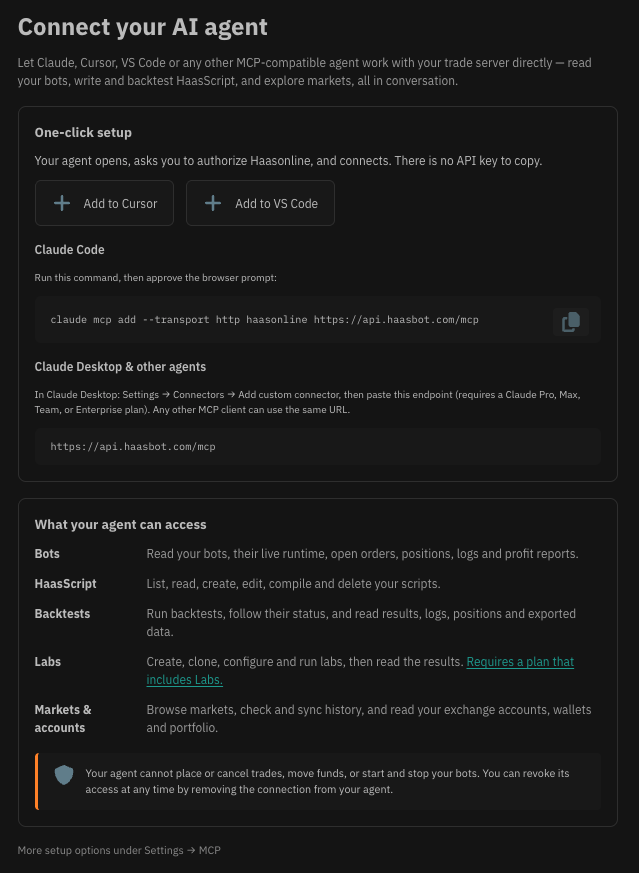
Your assistant reads bots, balances, positions, orders and logs in real time. What it can write is deliberately narrow: HaasScripts, Labs and backtests. It cannot place an order, move funds, or start, stop or reconfigure a live bot.
Universal Standard
MCP works with any compatible client—Claude Desktop, Cursor, and other AI tools that support the protocol.
The AI Never Sees Your Exchange Keys
Other AI trading tools ask you to paste API keys into a chat window. HaasOnline never does — the MCP server authenticates on your behalf, and no tool it exposes can place a trade, move funds, or start and stop a bot. Self-hosting goes further still: run TradeServer on your own hardware and your exchange credentials never leave it.
AI That Works With Your Proven Strategies — Not Instead of Them
With HaasOnline MCP, you stay in the driver's seat. Your bots run your strategies — AI helps you understand, manage, and improve them. You direct the conversation; the bots execute the trades.
What the HaasOnline MCP Server Does
The HaasOnline MCP server exposes your trade server — cloud or self-hosted — to any MCP-compatible AI assistant. Once connected, your AI can:
- Inspect your bots — query running bots, configurations, current positions, and performance metrics
- Read market data — pull live prices, order book depth, and trade history across connected exchanges
- Manage HaasScripts — view, create, and update custom scripts, with the full command reference searchable so signatures are never guessed
- Review account balances — get a real-time snapshot of holdings across all connected exchanges
- Run backtests and Labs — execute backtests, drive parameter optimization, and read every result
Getting Connected
On HaasOnline TradeServer Cloud there is no API key to create or paste. Open AI Agent in the sidebar and either use the one-click buttons for Cursor and VS Code, or run:
claude mcp add --transport http haasonline https://api.haasbot.com/mcpYour agent opens a browser, you approve the connection, and it is done. Available from the Standard plan up, and throughout your free trial.
Self-hosting TradeServer? The MCP server runs locally alongside your instance:
- Create an API key in your TradeServer settings panel
- Copy the generated API key
- Add the server to your AI assistant's MCP configuration (Claude Desktop, Cursor, Claude Code, or any MCP-compatible client)
- Start a new conversation — your assistant will have full context about your trading setup
Write and Improve HaasScripts in Conversation
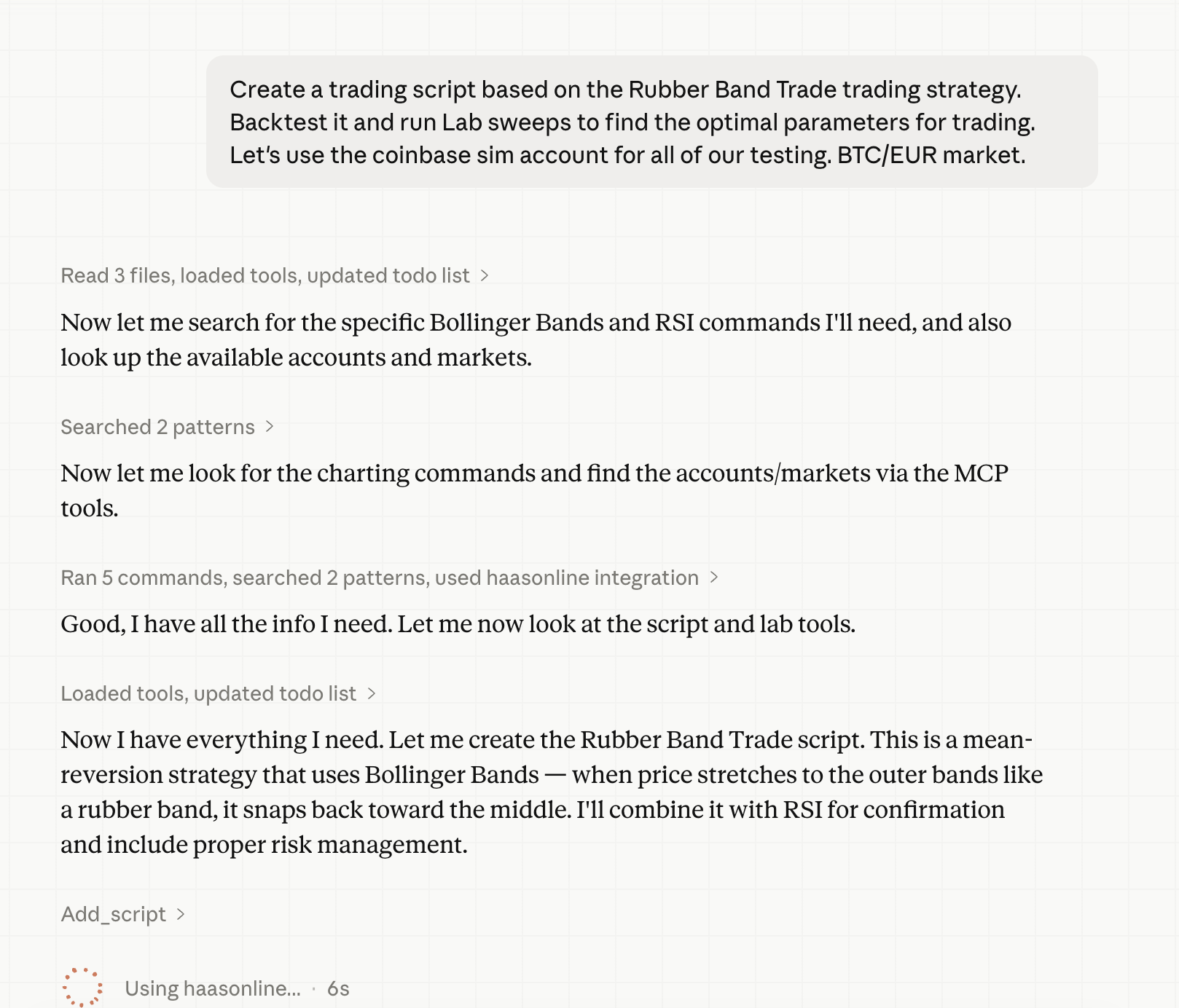
Describe what you want and Claude drafts it against your live TradeServer setup. Iterate in conversation and backtest it there too — then you deploy it yourself, in TradeServer. Writing the strategy is the AI's job; putting capital behind it stays yours.
- Build new scripts from scratch — "Build a Bollinger Band mean reversion script for BTC/USDT"
- Extend existing strategies — "Add a volume filter to my RSI strategy"
- Debug and review — "Explain what this script is doing and flag any logic issues"
- Backtest immediately — create, refine, and test without switching apps
See It In Action
Below, a user directs Claude Code to draft and backtest a Rubber Band Trade script using Bollinger Bands and RSI, leveraging live TradeServer data via MCP.
What TradeServer Traders Are Doing With It
Traders managing 20, 50, or 100+ bots across multiple exchanges face a real problem: staying on top of everything. A full portfolio audit used to mean 30 minutes of clicking through TradeServer. With MCP, it's one conversation.
Strategy Audits
"Audit all my running bots and flag any that haven't placed an order in the last 24 hours."
Script Development
"Look at my existing RSI strategy and suggest how to add a volume filter."
Performance Analysis
"Give me a performance summary of my running bots this month."
New Strategy Setup
"I want to add a grid bot on BTC/USDT on Binance. Walk me through the configuration options."
Risk Management
"Check all my bots and tell me which ones don't have a stop-loss configured."
Exchange Monitoring
"Show me my total exposure across all exchanges and flag any positions that exceed 10% of my portfolio."
Included on Standard and Above
AI agent access is included on the Standard, Pro and TradeServer plans, and throughout your free trial. On the cloud you will find it under AI Agent in the sidebar; if you self-host, update to the latest TradeServer release to find the MCP options in your settings panel.