Creating trade bots
Creating Trade Bots
TradeServer Cloud offers two ways to create a bot: the guided Standard View and the flexible Advanced View. Both lead to the same result -- a configured bot ready to trade -- but they cater to different levels of experience.
Standard View
The Standard View is the default when you open the Create Bot page from the sidebar under Bots > Create Bot.
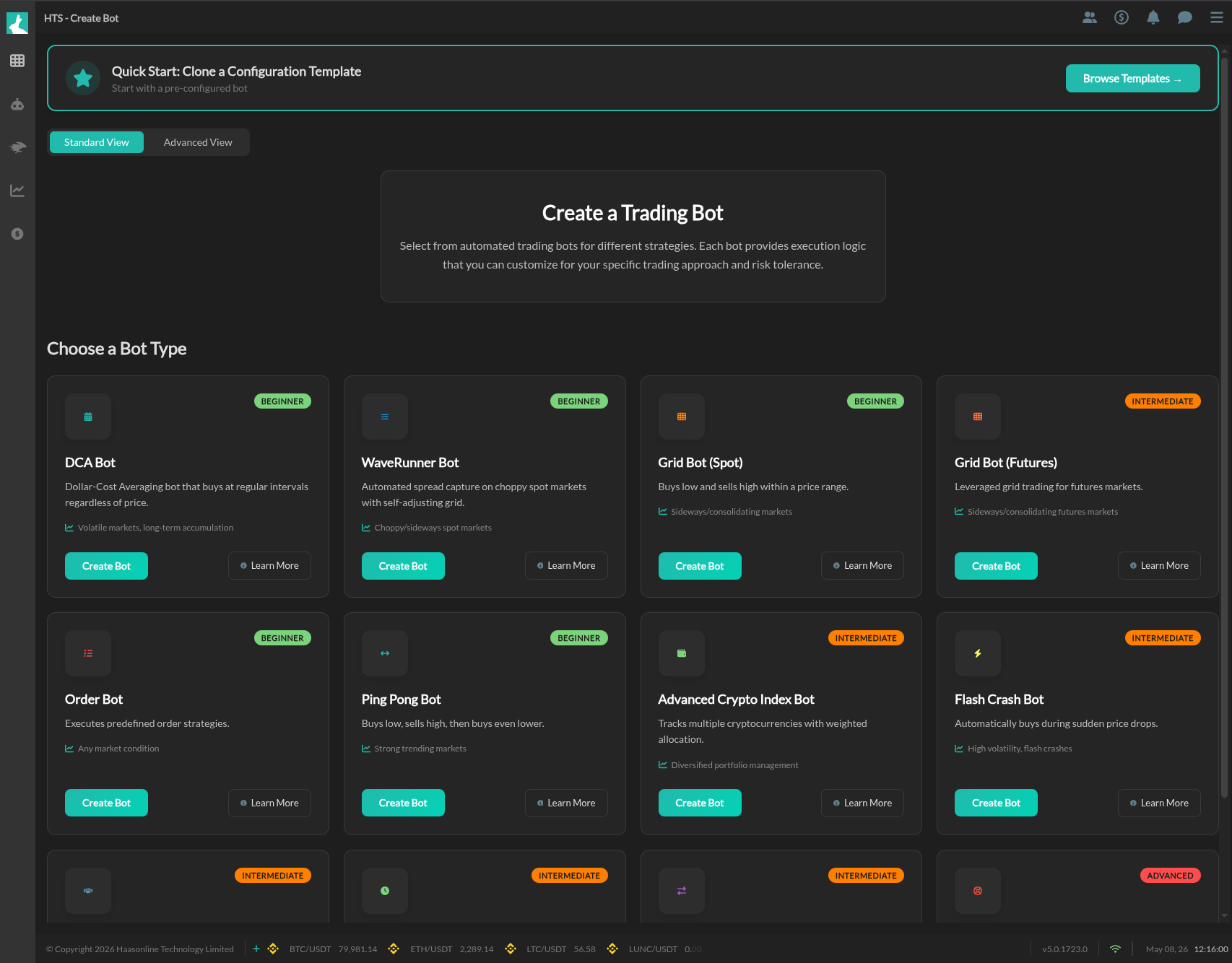
At the top of the page, a Quick Start banner offers a shortcut: Browse Templates lets you clone a pre-configured bot template, which is useful when you want a working starting point rather than configuring everything from scratch.
 ### Choosing a Bot Type
The main section displays a grid of bot cards. Each card represents a pre-built bot type with:
- The bot name and difficulty level (Beginner or Intermediate)
- A short description of the strategy
- A market condition tag indicating when the bot performs best
- Create Bot -- starts the configuration process
- Learn More -- opens documentation for that bot type
Available bot types include:
| Bot Type | Level | Strategy |
|---|---|---|
| DCA Bot | Beginner | Dollar-cost averaging into positions |
| WaveRunner Bot | Beginner | Rides market waves with timed entries |
| Grid Bot (Spot) | Beginner | Grid trading on spot markets |
| Grid Bot (Futures) | Intermediate | Leveraged grid trading on futures |
| Order Bot | Beginner | Custom order placement strategies |
| Ping Pong Bot | Beginner | Buys and sells at alternating price levels |
| Advanced Crypto Index Bot | Intermediate | Index-based portfolio management |
| Flash Crash Bot | Intermediate | Places orders to catch flash crash events |
Configuring a Bot
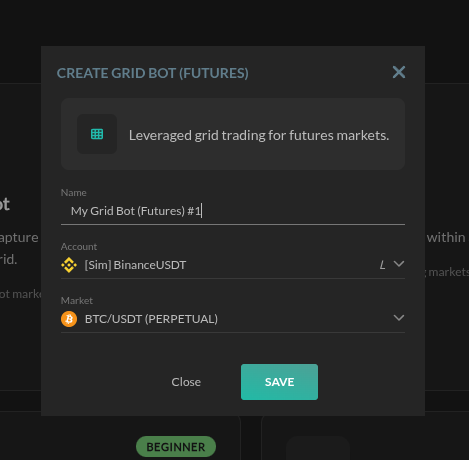
Clicking Create Bot on any card opens a configuration modal specific to that bot type. The modal includes:
- Name -- a default name is provided (e.g., "My Grid Bot (Futures) #1"), but you can change it to anything
- Account -- select which exchange account to run the bot on. Simulated accounts are prefixed with [Sim]
- Market -- select the trading pair. Available markets depend on the selected account and exchange
Click Save to create the bot. This will take you to the bot configuration and deployment.
 ## Advanced View
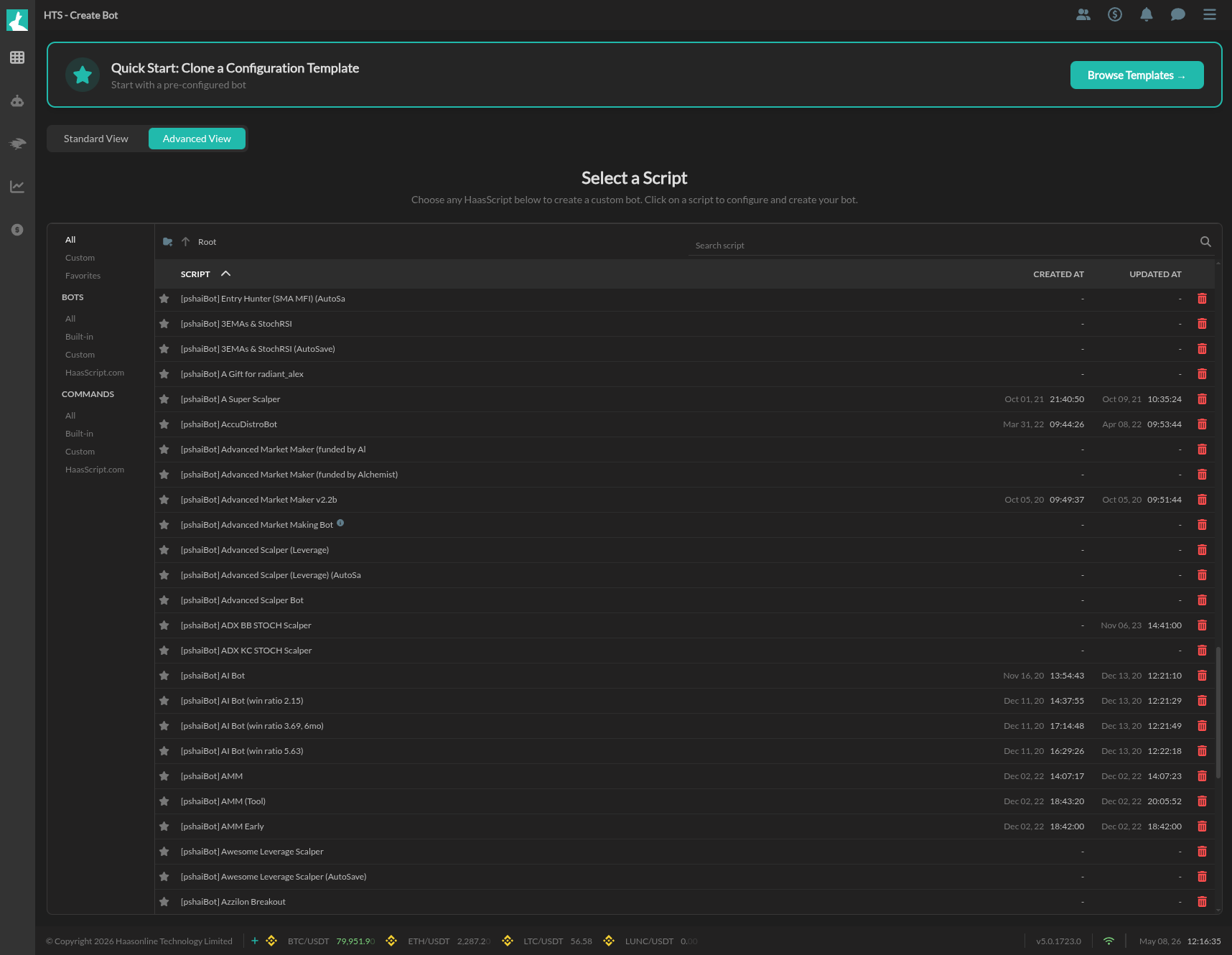
Switch to Advanced View using the toggle at the top of the Create Bot page. This view replaces the bot card grid with a full script browser.
 ### How It Works
The Advanced View lets you create a bot from any HaasScript in your library. The interface has two panels:
Left sidebar -- Categories:
- All -- every script you have access to
- Custom -- scripts you created
- Favorites -- scripts you starred
- BOTS -- filtered to bot scripts (All, Built-in, Custom, HaasScript.com)
- COMMANDS -- filtered to command scripts (All, Built-in, Custom, HaasScript.com)
Main list -- Script table:
Columns show the script name, creation date, last updated date, and a delete icon. Browse or search for the script you want, then select it to proceed with bot creation.
Use this view when you have a custom HaasScript or a script you downloaded from the community that isn't available as a pre-built bot type.
Creating a Bot from Bot Management
There is a second way to create bots. Navigate to Bots > Bot Management from the sidebar. This page lists all your bots and has filter tabs across the top: All Bots, Favorite Bots, Active Bots, Idle Bots, Open Positions, and Open Orders.
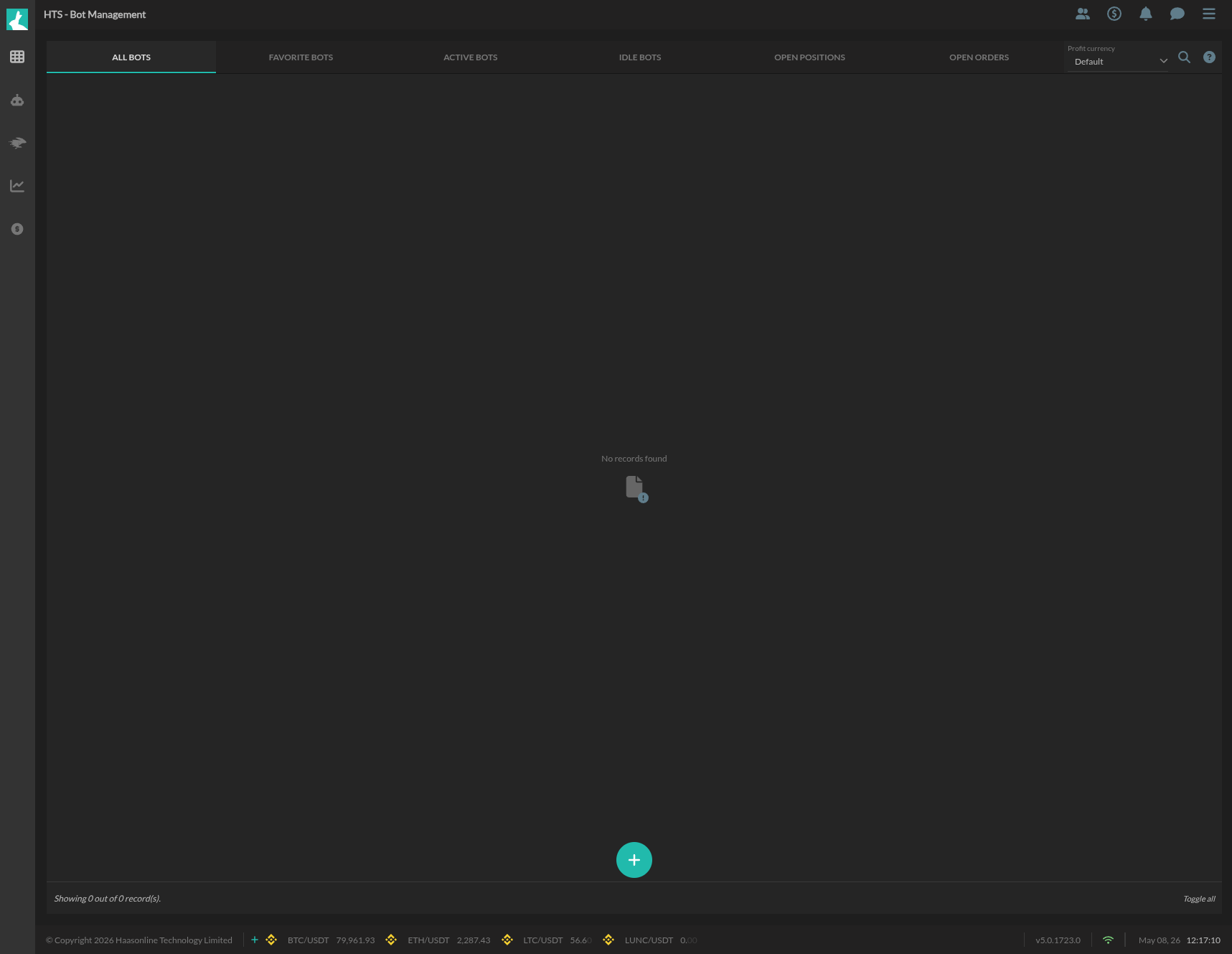 When no bots exist, the page shows an empty state. Click the + button at the bottom center to open the Add Bot modal.
This modal asks for three things:
- Name -- Your bot's name
- Account -- The exchange account to use
- Market -- The trading pair
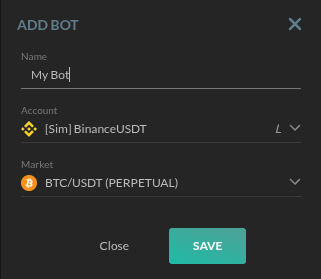 After clicking Save, a Select Script modal appears. This is a searchable list of all available scripts. Type in the search bar to filter (e.g., "simple grid") and select the script your bot should run. The bot is then created and appears in Bot Management.
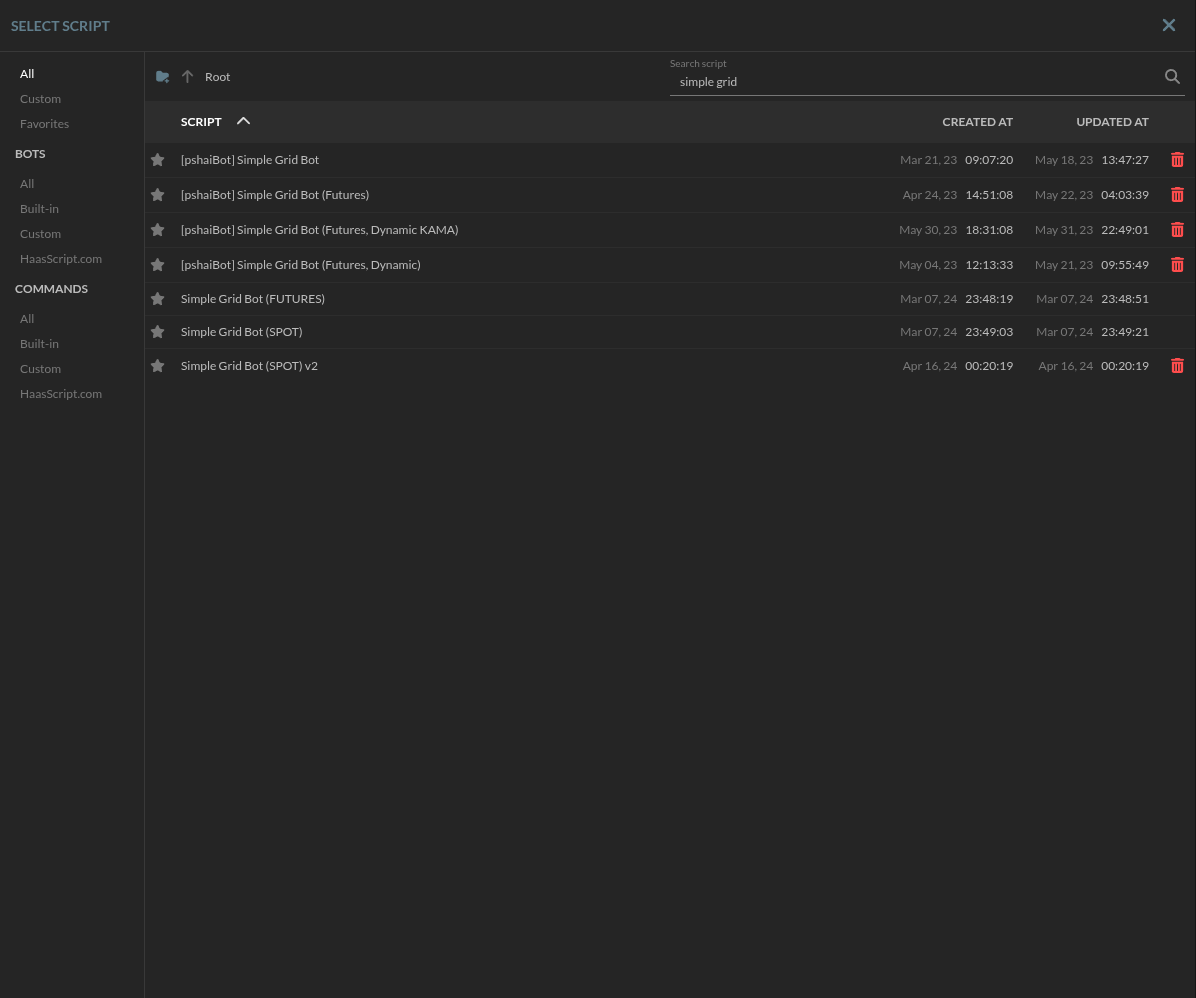 This workflow is the equivalent of the Advanced View but accessible directly from the management page. It is useful when you already know which script you want and prefer a quick setup without browsing categories.