Deploying trade bots
Deploying Trade Bots
After creating a bot, it lands on its own bot page in an Idle state. Before it can trade, you need to configure its settings and then start it. This page walks through the bot dashboard, the settings you need to fill in, and the process of going live.
The Bot Dashboard
When you open a bot (either by creating a new one or selecting it from Bot Management), you see its dedicated dashboard. This page is your primary interface for monitoring and controlling the bot.
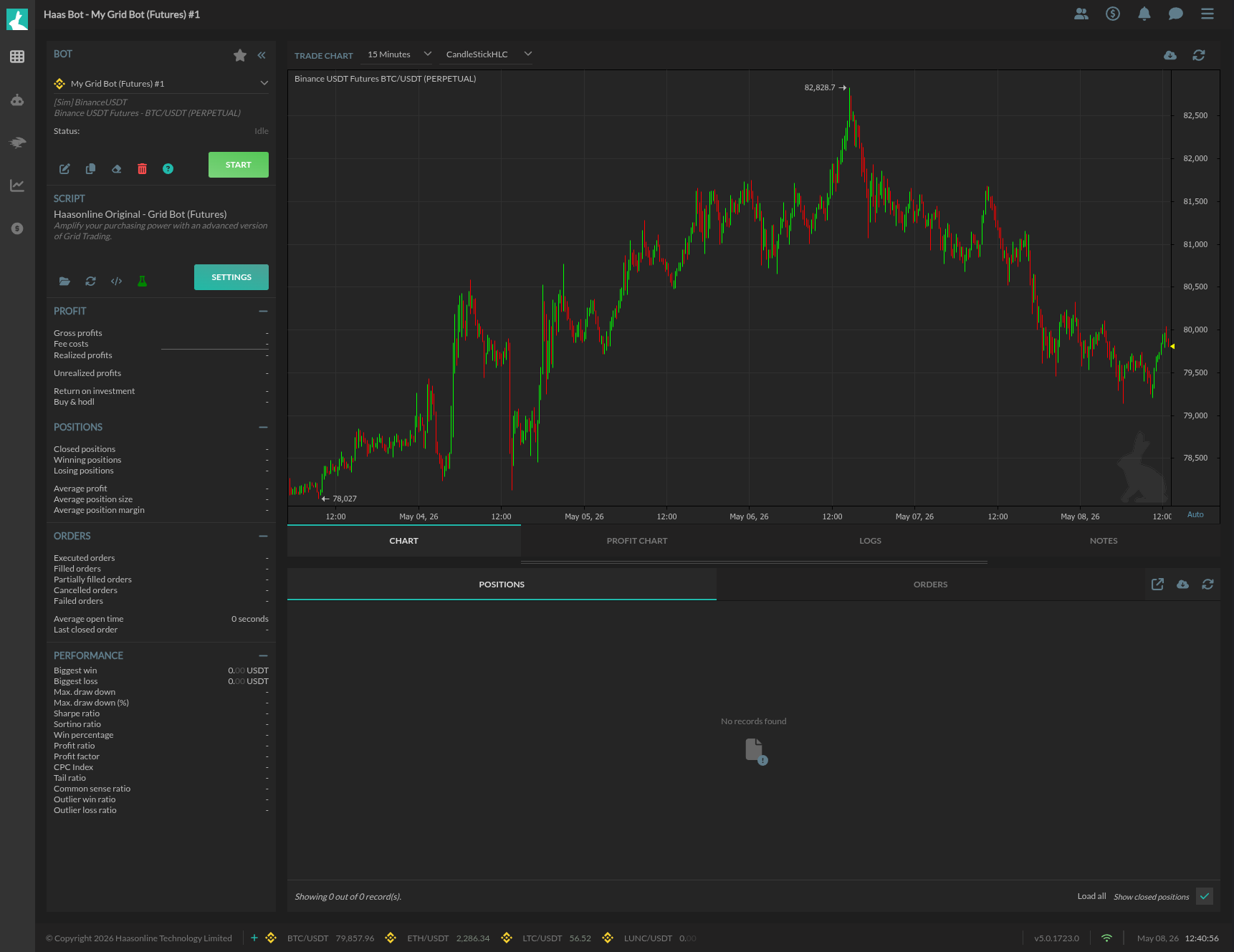 ### Header and Controls
The top of the left sidebar shows:
- Bot name -- e.g., "My Grid Bot (Futures) #1"
- Account and market -- the exchange account and trading pair
- Status -- Idle, Running, or Stopped
- Action buttons -- Edit, Copy, Delete, Help
- START button -- the large green button that deploys the bot
- Script section -- shows the running script name with a Settings button
Below this are the bot's performance statistics, all starting at zero or "-" for a new bot.
Performance Statistics
The left sidebar tracks four categories of metrics:
Profit:
| Metric | Description |
|---|---|
| Gross profits | Total profit before fees |
| Fee costs | Cumulative exchange fees paid |
| Realized profits | Net profit from closed positions |
| Unrealized profits | Floating profit on open positions |
| Return on investment | Percentage return relative to invested capital |
| Buy & HODL | Comparison against a simple buy-and-hold strategy |
Positions:
| Metric | Description |
|---|---|
| Closed positions | Total positions opened and closed |
| Winning / Losing positions | Count of profitable vs. losing positions |
| Average profit / size / margin | Averages across all positions |
Orders:
| Metric | Description |
|---|---|
| Executed / Filled / Partially filled / Cancelled / Failed | Order counts by status |
| Average open time | How long orders sit before filling |
| Last closed order | Timestamp of the most recent close |
Performance:
Detailed ratio metrics including Sharpe ratio, Sortino ratio, win percentage, profit factor, CPC index, tail ratio, common sense ratio, and outlier ratios. These become meaningful once the bot has a sufficient trading history.
Trade Chart and Data Tables
The right side of the dashboard shows:
- Trade chart -- a candlestick chart for the bot's market, with configurable timeframe and chart style
- Tabs -- Chart, Profit Chart, Logs, Notes
- Data tables -- Positions and Orders tables below the chart, filterable with options to load all records and show closed positions
Configuring Bot Settings
Before starting the bot, click the Settings button to configure its parameters. The settings page has two sections: bot-specific parameters and advanced controls.
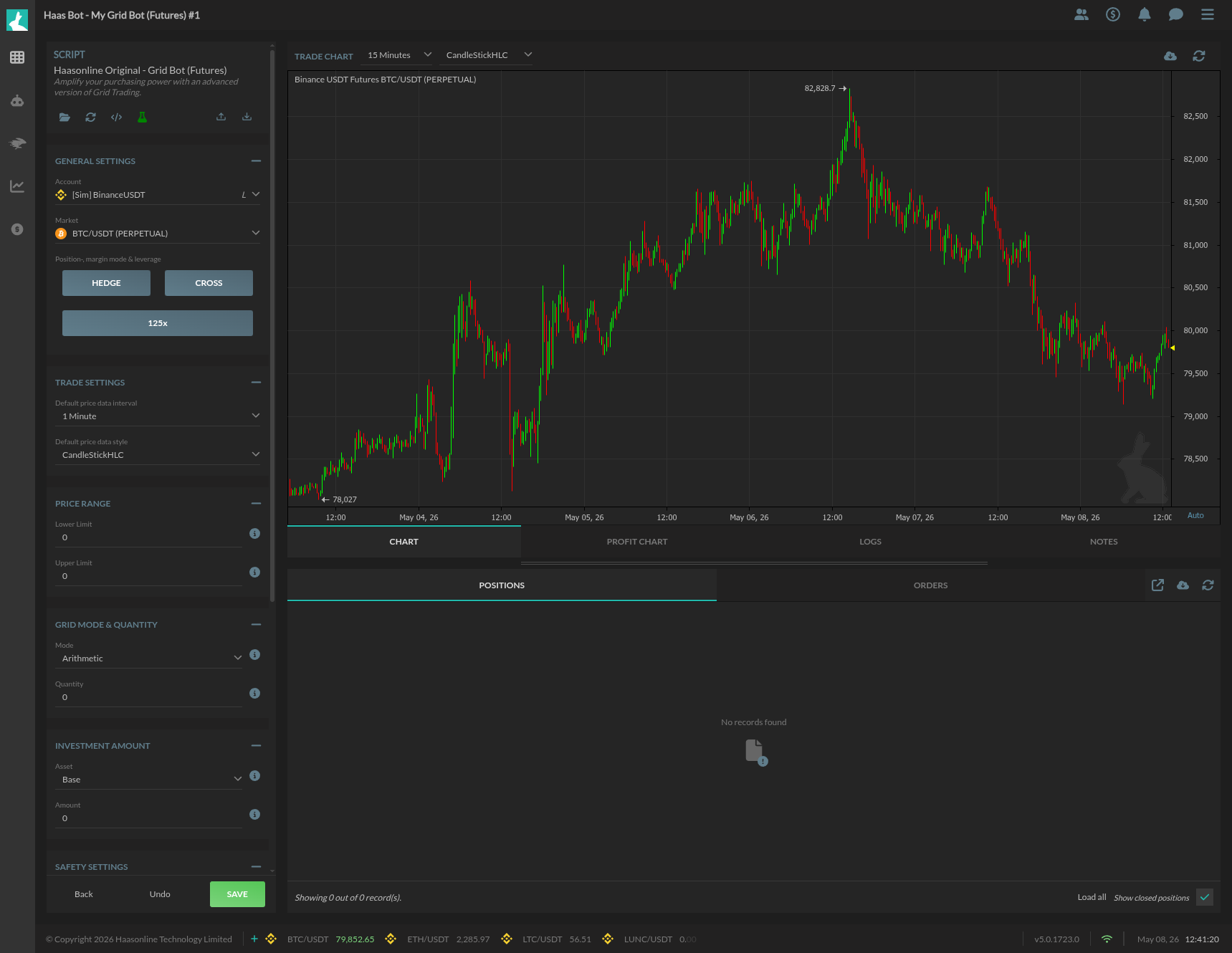 ### General Settings
These appear on every bot regardless of type:
| Setting | Description |
|---|---|
| Account | The exchange account the bot trades on |
| Market | The trading pair |
| Position / Margin / Leverage | Position mode (e.g., Hedge), margin mode (e.g., Cross), and leverage level |
Trade Settings
Control how the bot displays and processes price data:
| Setting | Description |
|---|---|
| Default price data interval | Candlestick timeframe (e.g., 1 Minute, 15 Minutes) |
| Default price data style | Chart style (e.g., CandleStickHLC) |
Bot-Specific Settings
Each bot type has its own set of parameters. For example, the Grid Bot (Futures) includes:
Price Range:
- Lower Limit and Upper Limit -- the price boundaries of the grid
Grid Mode & Quantity:
- Mode -- Arithmetic (evenly spaced) or Geometric (percentage spaced)
- Quantity -- number of grid levels
Investment Amount:
- Asset -- whether the amount is denominated in Base or Quote currency
- Amount -- total capital allocated to the bot
Safety Settings:
- Max allowed win -- bot stops after reaching this profit target
- Max allowed loss -- bot stops after reaching this loss limit
Other bot types have different parameters relevant to their strategy, but the layout and interaction pattern is the same.
Advanced Settings
Scrolling further down reveals the advanced section:
Start condition:
- Instant -- the bot starts trading immediately when you click Start
- Other options may allow conditional starts based on price or indicators
Stop condition:
- Manual -- the bot runs until you stop it manually
- Can be configured to stop automatically based on price levels or other conditions
Start/Stop type and value:
- Define price thresholds (e.g., "Above value") and the specific price for conditional start/stop triggers
Stop exits:
- A checkbox option that controls whether open positions are closed when the bot stops
Saving Settings
At the bottom of the settings page are three buttons:
- Back -- return to the bot dashboard without saving
- Undo -- revert changes to the last saved state
- Save -- apply your changes
Always click Save before returning to the dashboard.
Starting the Bot
Once settings are configured and saved, return to the bot dashboard and click the green START button. The status changes from Idle to Running, and the bot begins executing its strategy according to the parameters you set.
The trade chart and data tables update in real time as the bot places orders and manages positions.
Monitoring After Deployment
After the bot is running:
- Check the Logs tab for real-time activity and any errors
- Use the Profit Chart tab to visualize returns over time
- Monitor the performance statistics in the left sidebar as they populate
- Add notes in the Notes tab to document configuration changes or observations
To stop the bot, return to the dashboard and click the Stop button (replaces Start while running). Note that open positions are not closed and open orders are not cancelled when stopping a bot.