Manual Trades
Manual Trades
TradeServer Cloud lets you place trades manually through the Execute Trade modal. This is useful for quick entries, exits, or adjustments outside of your automated bots.
Opening the Execute Trade Modal
Click the Execute trade button accessible from the top-right area of the interface. This opens the trade execution modal.
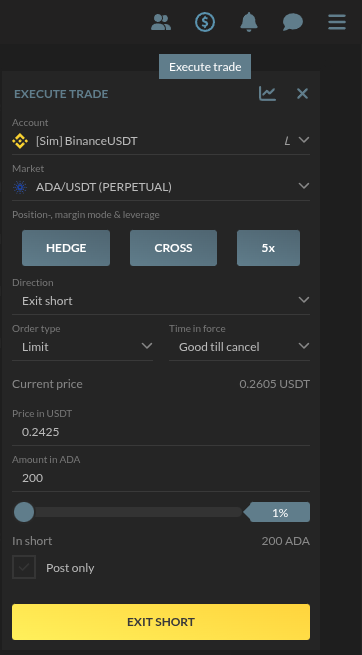 ## Configuring a Trade
The modal presents several fields you need to set before submitting the order.
Account
Select the account to trade from. Accounts are labeled to indicate whether they are live or simulated, for example:
- [Sim] BinanceUSDT -- a simulated (paper trading) account on Binance
- Accounts without the [Sim] prefix are connected to live exchange API keys
Market
Select the trading pair, such as ADA/USDT (PERPETUAL). The available markets depend on the selected account and its exchange.
Position, Margin Mode & Leverage
For futures and margin markets, configure:
- Position mode -- e.g., Hedge mode
- Margin mode -- e.g., Cross margin
- Leverage -- e.g., 5x
These options only appear for markets that support them.
Direction
Choose the trade direction from the dropdown:
- Buy / Long -- enter a long position
- Sell / Short -- enter a short position
- Exit long -- close an existing long position
- Exit short -- close an existing short position
Order Type
Select how the order should execute:
- Limit -- execute at a specified price or better
- Market -- execute immediately at the best available price
Time in Force
Control how long the order stays active:
- Good till cancel -- the order remains open until it fills or you cancel it
- Other options may be available depending on the exchange
Price
- Current price -- shown for reference (e.g., 0.2605 USDT). Clicking it will fill the price input with current price.
- Price input -- set your limit price. Only visible for limit orders.
Amount
Enter the quantity to trade in the base currency (e.g., 200 ADA). A percentage slider lets you quickly set the amount relative to your available balance.
Post Only
The Post only checkbox ensures your limit order is added to the order book rather than matching an existing order (which would incur taker fees). If the order would immediately match, it is cancelled instead.
Submitting the Order
The submit button at the bottom changes label based on your direction selection:
- BUY or LONG -- buying or entering a long
- SELL or SHORT -- selling or entering a short
- EXIT LONG -- closing a long
- EXIT SHORT -- closing a short
Review all fields carefully before clicking.