Notifications
Notifications
TradeServer Cloud provides a flexible notification system so you stay informed about bot activity, security events, and platform updates. You can receive notifications in the browser, as push notifications, and through third-party services.
Accessing Notification Settings
Open the top-right hamburger menu and select Settings, then click the Notifications tab (bell icon). The settings page has three sections on the left: General, Notifications, and Security.
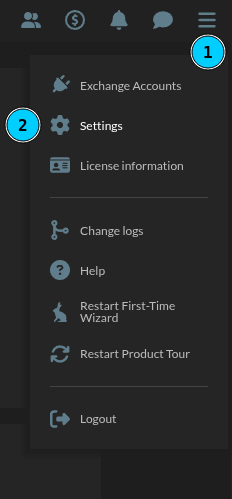
Notification Settings
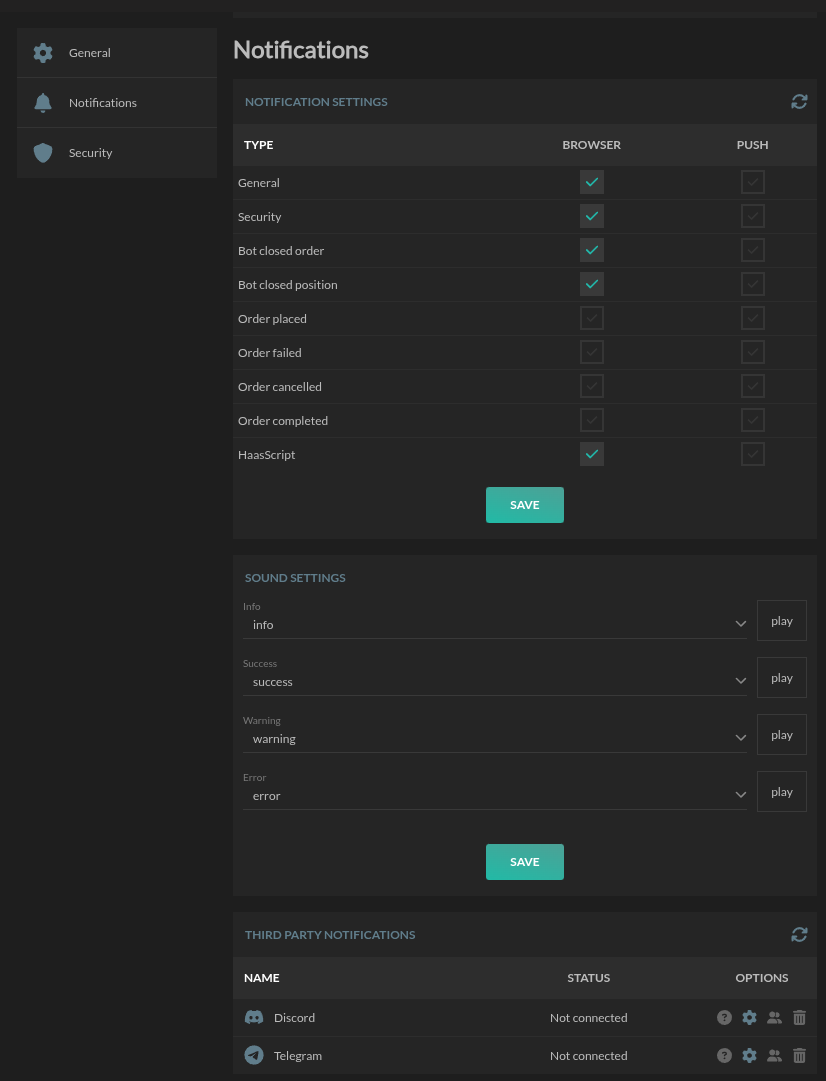 The notification settings table lets you toggle delivery channels per event type. There are two channels:
- Browser -- in-app notifications visible while you have TradeServer Cloud open
- Push -- push notifications sent to your linked Discord or Telegram bot
Event Types
| Event Type | Description |
|---|---|
| General | Platform announcements and general updates |
| Security | Login attempts, API key changes, and security alerts |
| Bot closed order | A bot's order has been closed |
| Bot closed position | A bot's position has been fully closed |
| Order placed | Any order submitted by a bot or manually |
| Order failed | An order was rejected by the exchange |
| Order cancelled | An order was cancelled before filling |
| Order completed | An order fully filled |
| HaasScript | Alerts from HaasScript signal or indicator scripts |
Enable or disable each channel for each event type independently. Click Save to apply your changes.
Sound Settings
Configure audio alerts for different notification categories. Each category has a sound selection dropdown and a play button to preview:
| Category | Typical Use |
|---|---|
| Info | General informational alerts |
| Success | Order fills, profitable trades |
| Warning | Risk warnings, approaching limits |
| Error | Failed orders, connection issues |
Select a sound from the dropdown for each category and click Save.
Third-Party Notifications
TradeServer Cloud supports forwarding notifications to external services. The third-party section lists integrations and their connection status.
Supported Services
| Service | Status Options |
|---|---|
| Discord | Connected or Not connected |
| Telegram | Connected or Not connected |
Setting Up an Integration
- Click the gear icon next to the service you want to configure.
- Enter your webhook URL or bot token as prompted.
- Save the configuration.
The status changes to Connected once configured. You can manage connected users (people icon), get help (question mark icon), or remove the integration (trash icon) at any time.