Navigating TradeServer Cloud
Navigating TradeServer Cloud
When you log into TradeServer Cloud, you land on the main dashboard. This is your central hub for monitoring bots, positions, portfolio performance, and navigating to every other part of the platform.
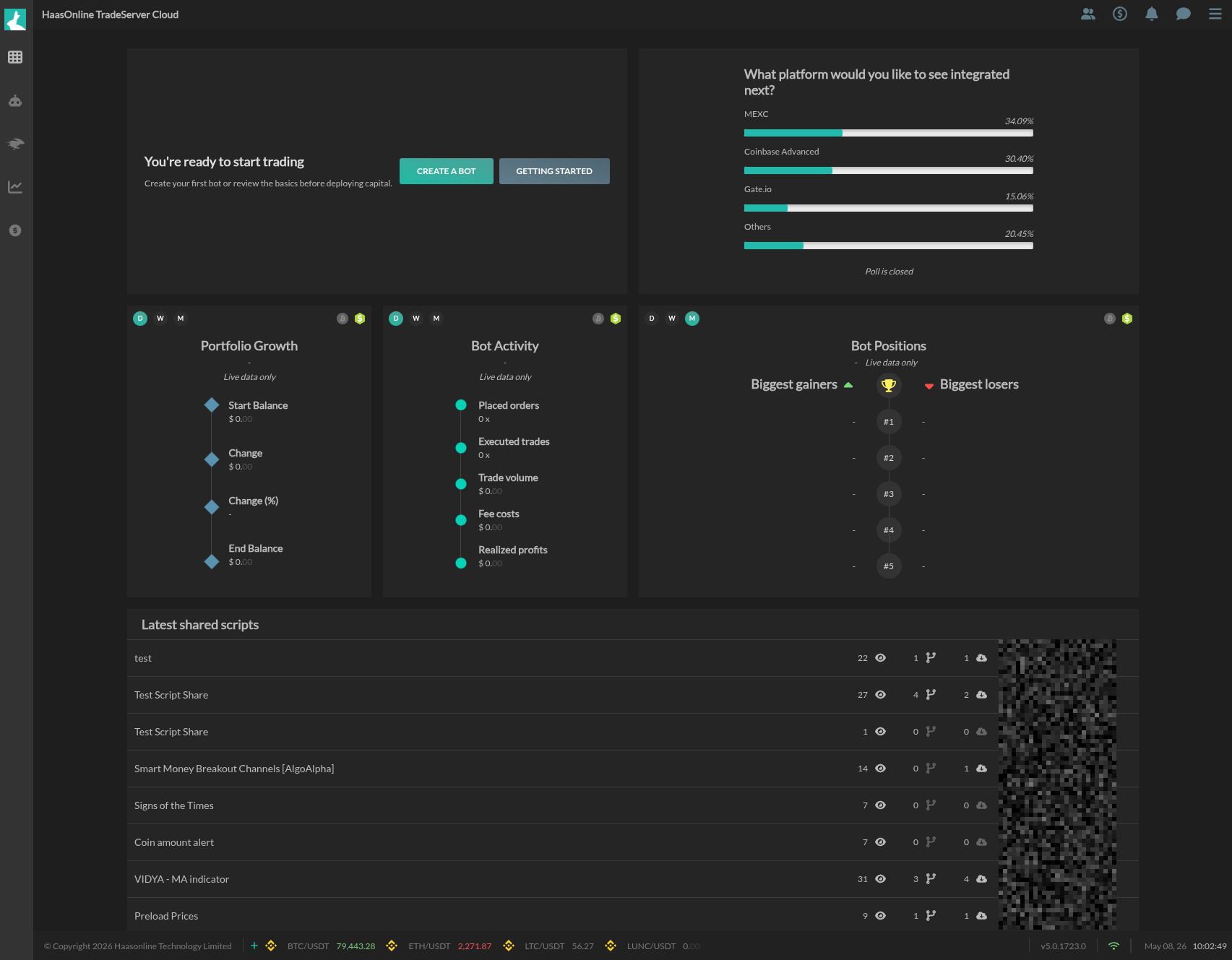
The Main Dashboard
The dashboard is divided into several areas:
- A welcome banner with quick-action buttons to Create a Bot or review the Getting Started guide
- Three core widgets: Portfolio Growth, Bot Activity, and Bot Positions
- A Latest shared scripts table showing community contributions
- A community poll widget (top right)
Each widget has time-range toggles (D, W, M) and filters for live data.
Portfolio Growth Widget
Tracks your balance over time:
- Start Balance -- your balance at the beginning of the selected period
- Change -- absolute dollar change
- Change (%) -- percentage change
- End Balance -- your current balance
Bot Activity Widget
Shows bot trading metrics for the selected period:
- Placed orders -- total orders submitted
- Executed trades -- orders that filled
- Trade volume -- total dollar volume traded
- Fee costs -- cumulative exchange fees
- Realized profits -- profit from closed positions
Bot Positions Widget
Ranks your open positions by performance, showing your biggest gainers and biggest losers.
Latest Shared Scripts
A table of recently shared HaasScript community scripts with view, share, and download counts. This is a good place to discover scripts others have published.
The Sidebar Navigation
The left sidebar is your primary navigation. It collapses and expands sections with arrow toggles.
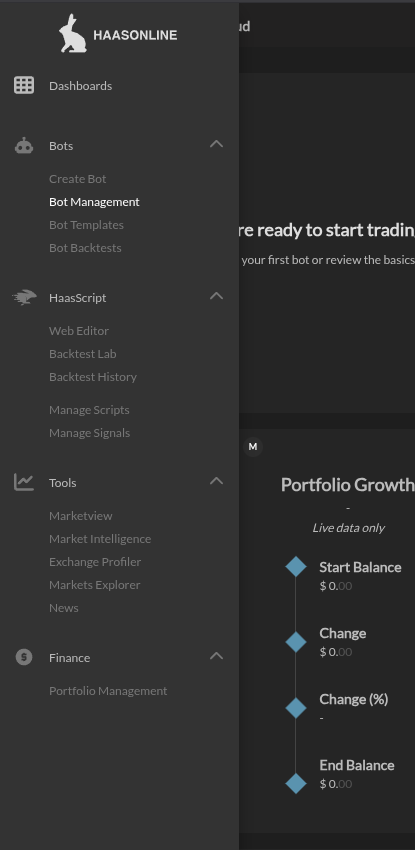
| Section | Sub-items |
|---|---|
| Dashboards | Main dashboard view |
| Bots | Create Bot, Bot Management, Bot Templates, Bot Backtests |
| HaasScript | Web Editor, Backtest Lab, Backtest History, Manage Scripts, Manage Signals |
| Tools | Marketview, Market Intelligence, Exchange Profiler, Markets Explorer, News |
| Finance | Portfolio Management |
Click any section header to expand or collapse its sub-items.
The Top-Right Menu
The hamburger icon in the top-right corner opens a dropdown with account-level options:
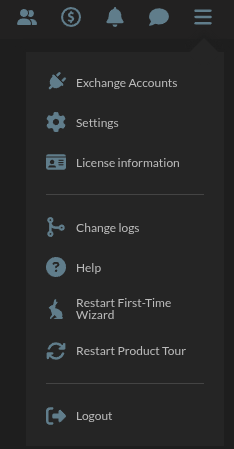
| Menu Item | What it does |
|---|---|
| Exchange Accounts | Manage connected exchange API keys |
| Settings | Open the settings panel (General, Notifications, Security) |
| License information | View your current license tier and details |
| Change logs | Read platform update notes |
| Help | Access documentation and support |
| Restart First-Time Wizard | Re-run the initial setup wizard |
| Restart Product Tour | Replay the platform tour |
| Logout | Sign out of TradeServer Cloud |
The Footer Bar
The bottom of the screen shows:
- Copyright notice -- Haasonline Technology Limited
- Price tickers -- real-time prices for your tracked markets
- Version number -- current platform build
- Date and time -- your local time